Tempero manual
Tempero helps you track your alcohol consumption against a weekly goal you set yourself. Your weekly goal is the number of standard drinks you aim to stay at or below. Choose when your week begins, record drinks as you have them or later, and review your totals over time. You can edit or delete a drink whenever you need to correct your history.
What is a standard drink?
Tempero uses the US definition of a standard drink: 0.6 US fl oz of pure alcohol. It calculates standard drinks from a serving's volume and strength, entered as percent alcohol by volume (% ABV). For example, 12 US fl oz of 5% beer, 5 US fl oz of 12% wine, and 1.5 US fl oz of 40% liquor each contain one standard drink. Liquor strength is often listed as proof; proof is twice the ABV, so 80 proof is 40% ABV.
Understand your weekly standing
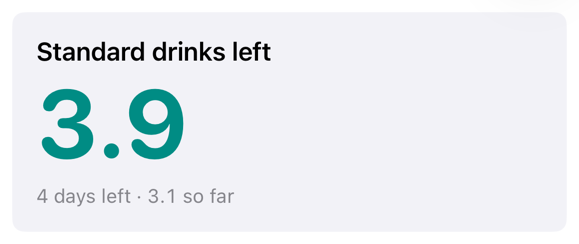
The Standard drinks left figure is your weekly goal minus the current week's total. Beneath it, Tempero shows how many days are left in the week and how many standard drinks you have recorded so far. After you pass your weekly goal, the figure becomes negative and continues counting down.
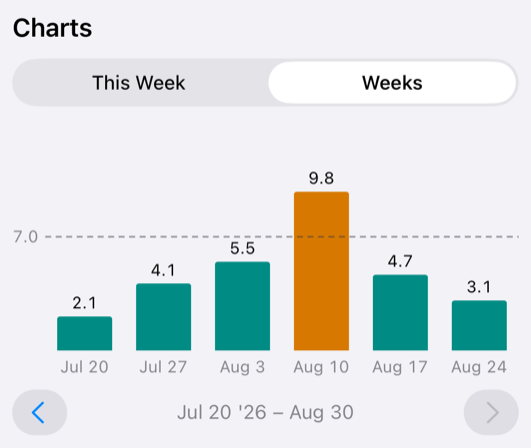
Tempero uses color to show where a weekly total stands against your weekly goal. The figure is turquoise at or below the goal, becomes yellow just past it, and shifts through orange toward red as the total approaches twice the goal. The bars in the Weeks chart use the same scale.
Record a drink
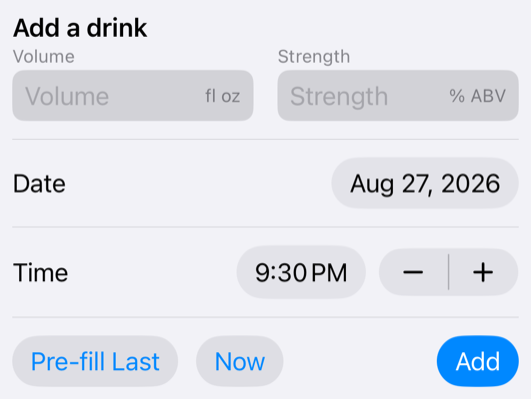
Enter the Volume, Strength, Date, and Time, then tap Add. Strength is entered as percent alcohol by volume (% ABV). The − and + buttons next to Time move it to the previous or next quarter-hour mark.
Pre-fill Last fills all four fields from the drink with the latest date and time. This makes it easier to record similar drinks after the fact. Now sets the date and time to the present without changing the volume or strength.
Change your settings
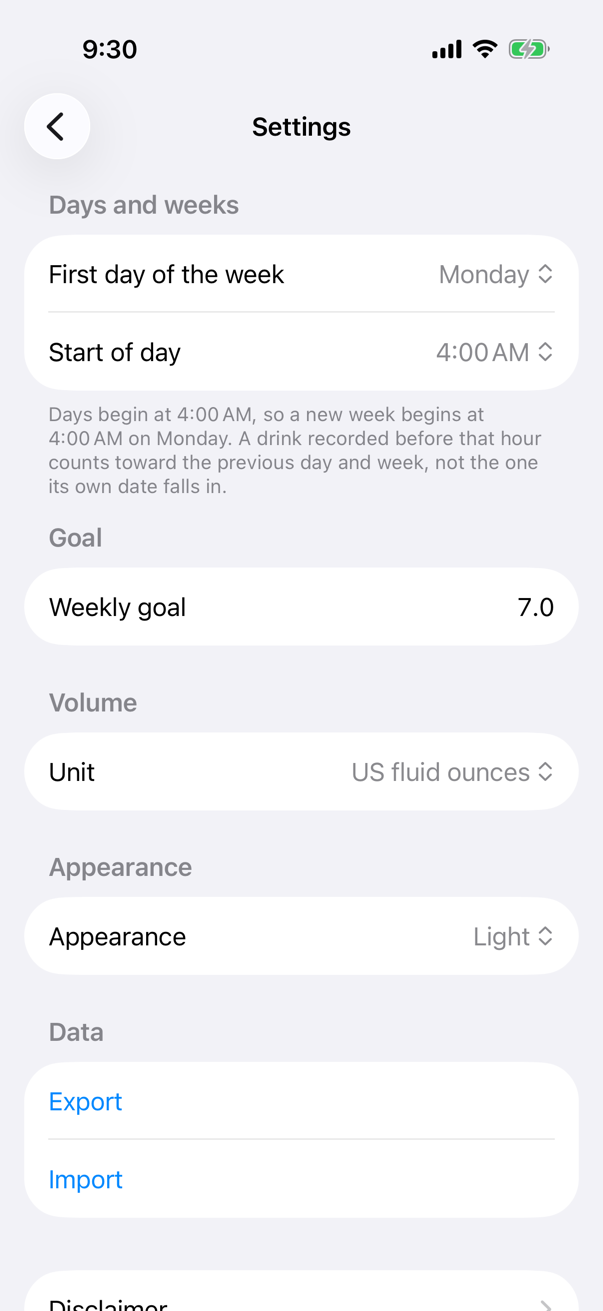
Tap the gear icon in the upper-right corner of the main screen to open Settings.
Use First day of the week and Start of day to choose when your week begins. In Tempero, a week is any seven-day period beginning on the day and time you choose.
You can also import and export drink data in CSV format. Important: importing a file replaces every drink currently stored in the app.
Read the charts
Use the two chart views to track standard drinks over time.
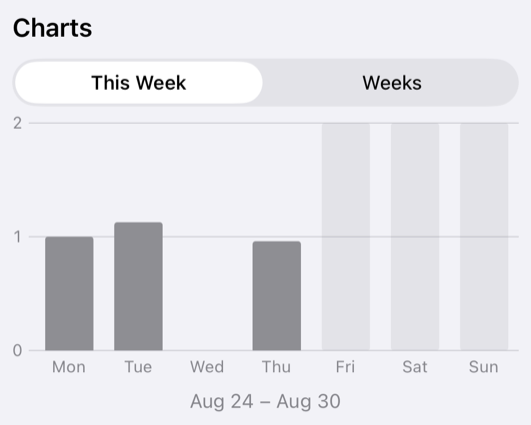
This Week shows the current week's standard-drink total broken down by day.
Weeks shows six consecutive weekly totals ending with the current week. Use the arrows to move through earlier or later groups of six weeks.
Review recent drinks
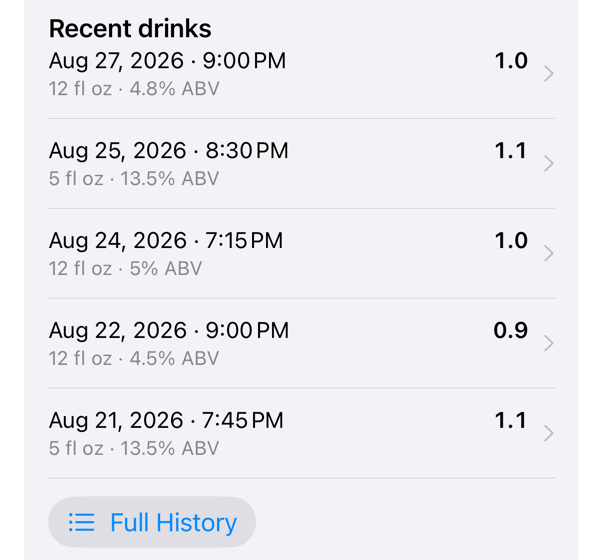
The Recent drinks section shows the five drinks with the latest dates and times, regardless of when you entered them. Tap a drink to edit it.
View, edit, and delete history
Tap Full History beneath Recent drinks to see every drink. History groups drinks by week and orders them by the date and time set on each drink, from latest to earliest—not by the order in which you entered them.
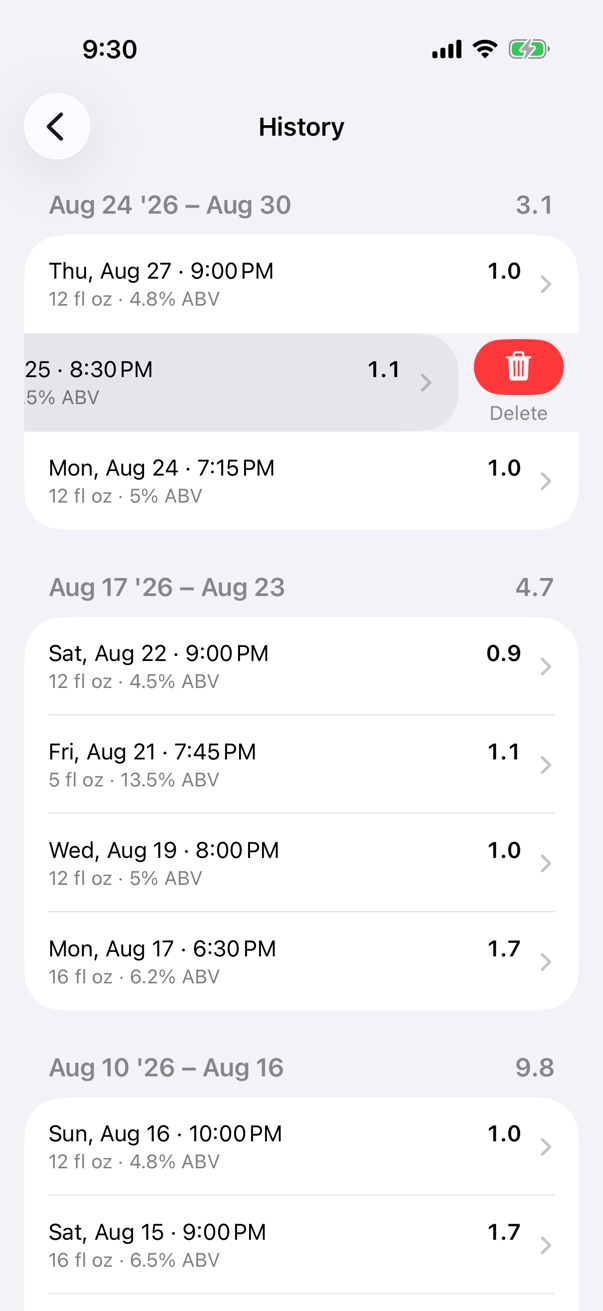
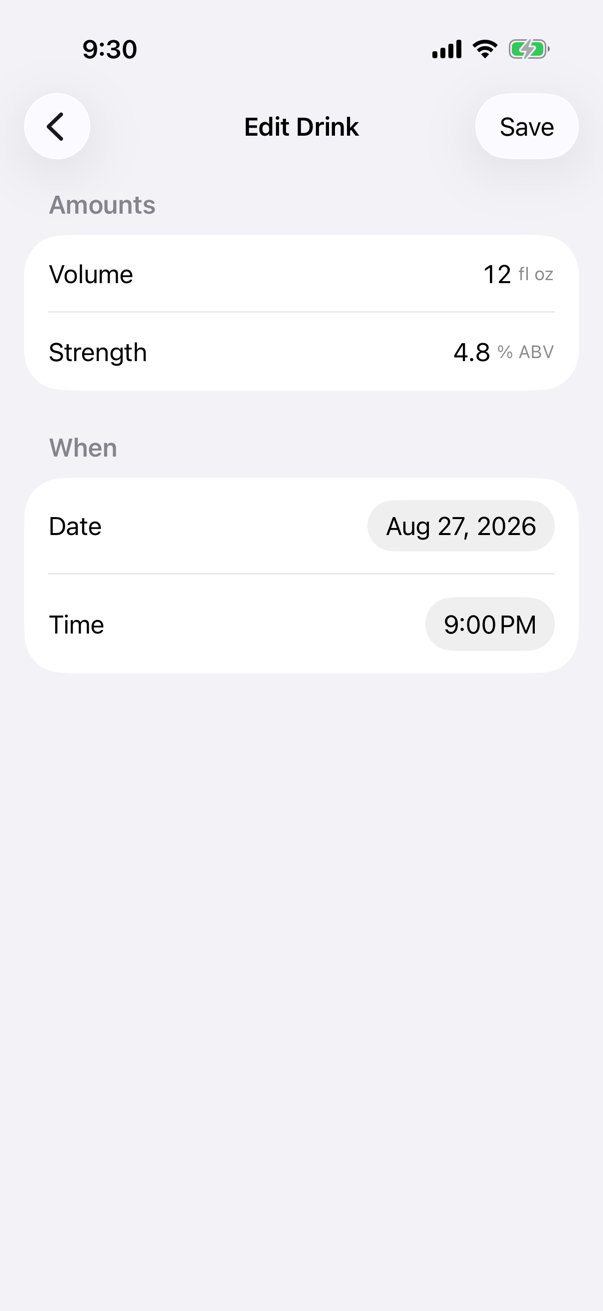
Swipe left on a drink to delete it. Tap a drink to edit its Volume, Strength, Date, or Time. Tap Save to keep your changes, or go back to discard them.
Send feedback
Email comms@temperoapp.com to report a bug or share feedback.